Integrations
The N|Solid Console can send notifications about global events, vulnerabilities, and saved views to Slack, Microsoft Teams, generic webhooks, PagerDuty, and email. It can also receive serverless telemetry from an AWS SQS queue. This page explains how to set up each integration and describes the data that webhooks receive.
Where integrations are configured
Slack, Microsoft Teams, generic webhook, PagerDuty, and AWS SQS integrations are configured on the N|Solid Integrations page. In the N|Solid Console, click Settings, expand Integrations in the left menu, and select N|Solid Integrations. The page has a section for each integration type: Slack Webhooks, Microsoft Teams Webhooks, Generic Webhooks, PagerDuty Integration, and AWS SQS Integration.
After you save an integration, you can attach it as a notification to a global event (Settings > Global Notifications), to vulnerability notifications, or to a saved view. Email notifications don't need an integration. See Email notifications.
On a self-hosted N|Solid Console running in offline mode, the Slack, Microsoft Teams, and email options aren't available.
Slack integration
To post notifications to a Slack channel, create a Slack incoming webhook:
- In Slack, create a Slack app (or open an existing one) and turn on Incoming Webhooks. See Sending messages using incoming webhooks.
- Add a new webhook for the workspace, choose the channel for the messages, and copy the webhook URL.
- In the N|Solid Console, open Settings > Integrations > N|Solid Integrations.
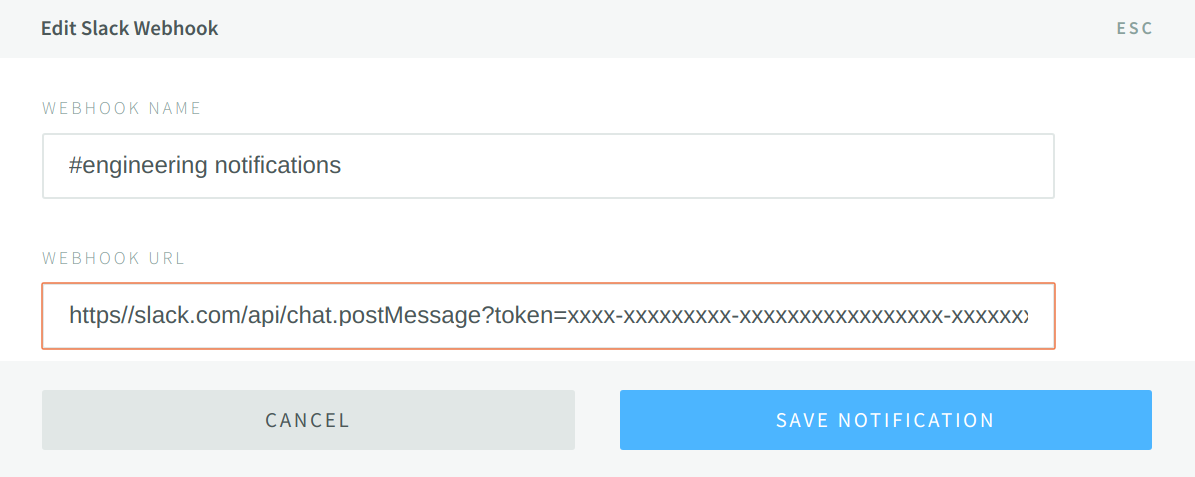
- In Slack Webhooks, click New Slack Webhook.
- Enter a Webhook Name and paste the Webhook URL, then click Save Integration.
Examples
These examples show typical notifications posted to Slack.
Process event loop blocked

Saved view entered

Vulnerability detected

Microsoft Teams integration
To post notifications to a Microsoft Teams channel:
- In Microsoft Teams, create an incoming webhook for the channel (for example, with a Workflows or Power Automate flow that receives webhook requests) and copy its URL. The Console sends a MessageCard-format payload, so your flow must accept that format (the default Workflows webhook template expects Adaptive Cards).
- In the N|Solid Console, open Settings > Integrations > N|Solid Integrations.
- In Microsoft Teams Webhooks, click New Teams Webhook.
- Enter a Webhook Name and paste the Webhook URL, then click Save Integration.
Webhook integration
A generic webhook sends each notification as an HTTP POST request to a server you manage, so you can handle notifications with your own code.
The notification data is a JSON object in the request body, sent with the Content-Type: application/json header. For Azure Logic Apps and Power Automate URLs (logic.azure.com), the Console sends the body as a JSON string and also sets Content-Length.
To add a webhook:
- In the N|Solid Console, open Settings > Integrations > N|Solid Integrations.
- In Generic Webhooks, click New Generic Webhook.
- Enter a Webhook Name and paste the Webhook URL, then click Save Integration.
Events
The webhook body has an event property that identifies the event that triggered the notification:
| Event | Description |
|---|---|
nsolid-saved-view-match | An agent entered a saved view, the configured delay has passed, and the event hasn't fired within the snooze period. |
nsolid-agent-exit | A connected agent is no longer connected to the N|Solid Console. |
nsolid-process-blocked | A process's event loop was blocked for at least the configured threshold. |
nsolid-vulnerability-detected | A new vulnerability was detected in a process. |
nsolid-profile-generated | A CPU profile was generated, either manually or by another event. |
nsolid-snapshot-generated | A heap snapshot was generated, either manually or by another event. |
nsolid-heap-profile-generated | A heap profile was generated, either manually or by another event. |
nsolid-heap-sample-generated | A heap sample was generated, either manually or by another event. |
nsolid-ml-event-detected | The Console's machine-learning event detection found an anomaly in a process. |
Common data
Every notification includes these properties. Some events add more, as described in the following sections.
| Property | Description |
|---|---|
time | ISO date-time string of when the event was triggered. |
event | The event type, from the table above. |
agents | A list of agent objects, described below. |
assets | A list of assets, such as heap snapshots or CPU profiles, that the event caused to be created. Each entry has a type and a url. |
config | The notification configuration that caused the notification to be sent. |
Each object in the agents list has these properties:
| Property | Description |
|---|---|
id | The agent ID. |
info | Information about the agent, including its tags, app name, and hostname. |
Agent exit data
Agent exit notifications include the process's exitCode. If the process exited abnormally with an error, the notification also includes an error object, whose error.stack property holds the stack trace.
In Settings > Global Notifications > Process Death, you can limit these notifications to All Exits, Normal Exits (exit code 0), or Abnormal Exits. To send only abnormal exits that have a stack trace, select Only report abnormal exits with a stacktrace.
Event loop blocked data
Event loop blocked notifications (nsolid-process-blocked) include:
stack— the stack trace that was executing when the event loop was blocked.blockedFor— how long the event loop was blocked, in milliseconds.
Vulnerability data
Vulnerability notifications (nsolid-vulnerability-detected) include a vulnerabilities list containing the newly detected vulnerability. Each entry includes a url that links to the vulnerability in the N|Solid Console.
PagerDuty integration
A PagerDuty integration sends notifications to a PagerDuty service using an integration key, not a URL.
- In PagerDuty, add an integration to a service (or to a global ruleset) and copy its 32-character Integration Key.
- In the N|Solid Console, open Settings > Integrations > N|Solid Integrations.
- In PagerDuty Integration, click New Pager Duty Integration.
- Enter an Integration Name and paste the Integration Key, then click Save Integration.
When you add a notification to an event, choose Pager Duty Integration and select your integration.
AWS SQS integration
An AWS SQS integration isn't a notification target. The Console uses it to read telemetry that N|Solid serverless functions send to an SQS queue. To add one, click New AWS SQS Integration, enter a Queue Name and Queue URL, and click Save Integration.
The queue URL must have the form https://sqs.<region>.amazonaws.com/<account-id>/<queue-name>. The Console checks that the queue exists before it saves the integration. For the full serverless setup, see Serverless.
Email notifications
Email notifications don't need an integration on the N|Solid Integrations page. When you add a notification to a global event in Settings > Global Notifications, or to a saved view, choose Email, enter one or more email addresses separated by commas, and save the notification.
