Find event loop pauses
Learn what causes event loop pauses in Node.js, how N|Solid detects them, and how to find the code that blocks the event loop.
Why event loop pauses matter
The Node.js event loop is powered by libuv, which manages an I/O queue so that I/O operations run in parallel while JavaScript runs on the main thread.
Because JavaScript in Node.js runs on a single thread (unless you use Worker Threads), long-running synchronous JavaScript blocks the event loop. While it runs, pending I/O can't be processed, and requests wait.
Strategies for dealing with long synchronous work include:
- Improve the performance of the code.
- Break the work into smaller pieces so other work can run in between.
- Offload the work to other services.
- Add more worker processes.
- Move the work to Worker Threads.
How N|Solid detects pauses
The N|Solid Runtime monitors the main event loop. When the loop is blocked by JavaScript execution for longer than a threshold, the N|Solid Console records a process-blocked event, with the stack trace of the blocking code. When the loop recovers, it records a process-unblocked event.
Find blocked event loops in the N|Solid Console
-
Open the navigation menu (☰) and select Events.
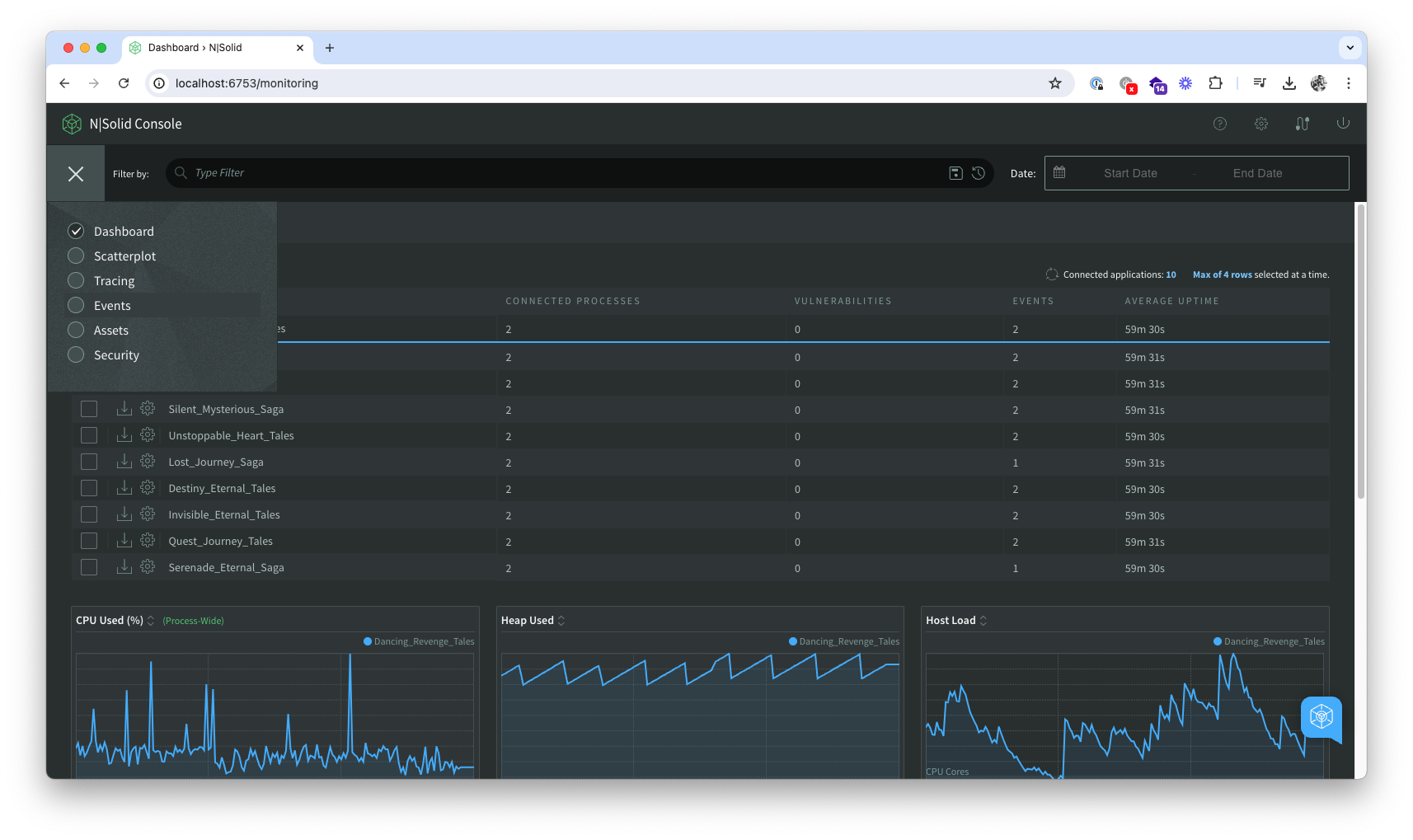
-
In the filter bar, select Type: performance.
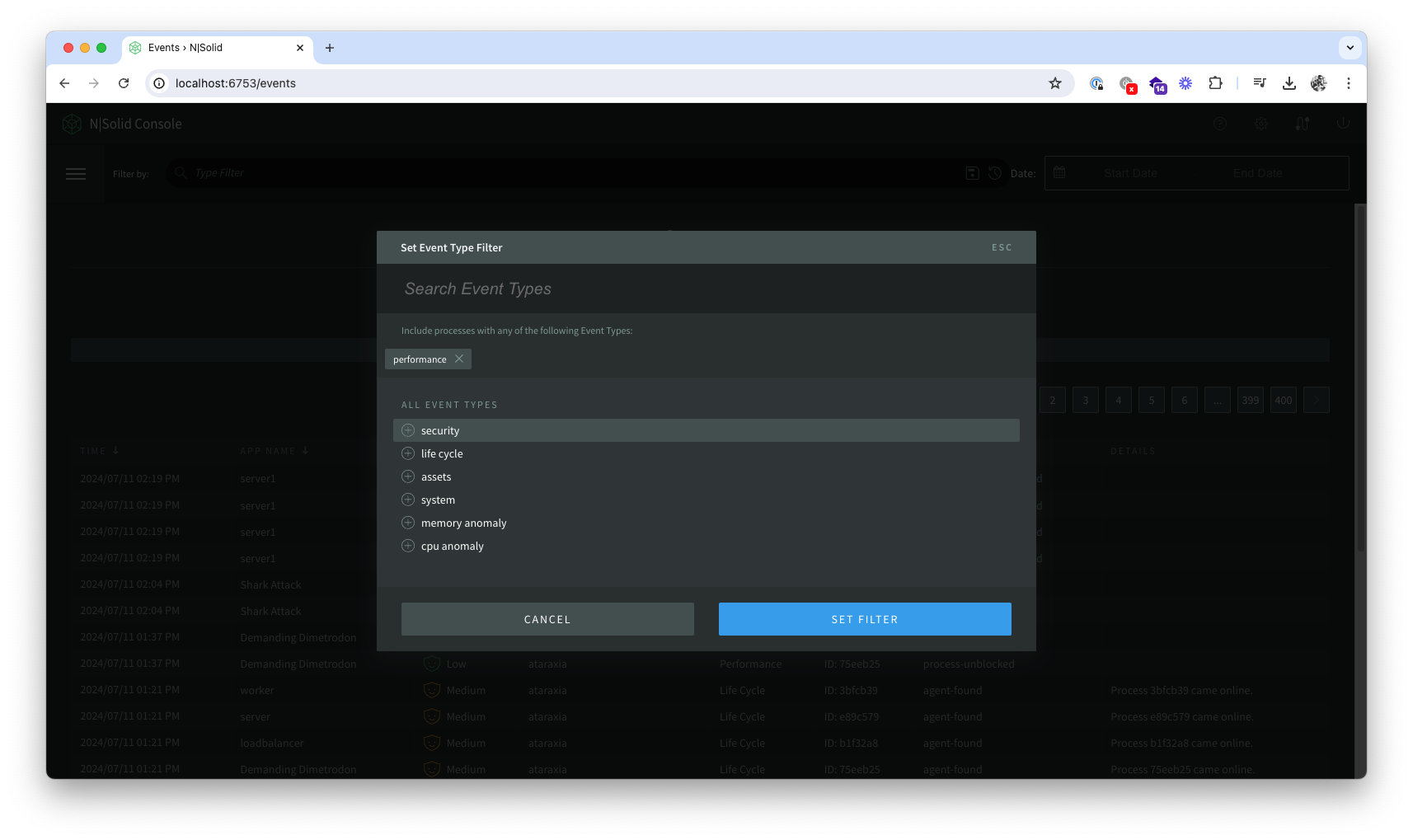
-
On a
process-blockedevent, click View Details to see the stack trace of the code that blocked the event loop. For grouped events, the button is View Stack. The stack trace shows what to optimize or offload.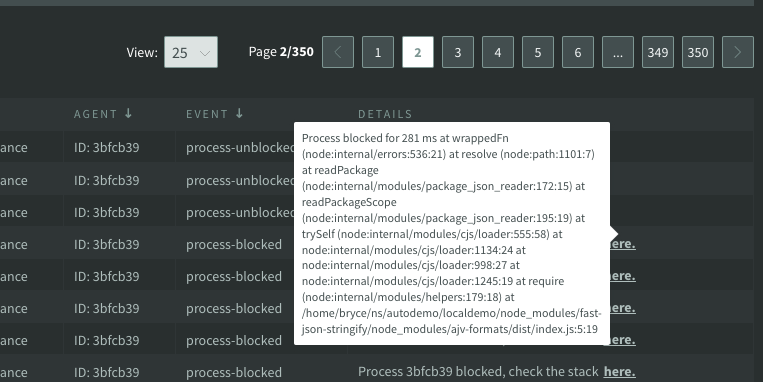
Configure the threshold
By default, N|Solid reports the event loop as blocked when it is blocked for more than 200 ms. You can change the threshold in several ways:
- Environment variable: set
NSOLID_BLOCKED_LOOP_THRESHOLDto a value in milliseconds, for exampleNSOLID_BLOCKED_LOOP_THRESHOLD=500. - package.json: set
blockedLoopThresholdin thensolidsection. - For a running process: click the Process Configuration icon, enter a value in Blocked Loop Threshold (ms) in the Dynamic Configuration dialog, and click SAVE CONFIGURATION.
- For all processes: in the Console, go to Settings > Global Notifications and set Delay Duration under Event Loop Blocked. The Console sends this threshold to connected processes.
Get notified
To get notified when an event loop is blocked, add a notification, such as email or Slack, in the Event Loop Blocked section of Settings > Global Notifications. See Integrations to set up Slack, Microsoft Teams, and other integrations.
