Events
The Events view in the N|Solid IDE extension shows runtime events from your N|Solid Console, especially blocked and exited processes, and can alert you in the editor when a serious event occurs. This page covers how events are grouped, how alerting works, the alert settings, and how to investigate an event.
What the view is for
Use the Events view to catch alerts for:
- Blocked processes — events such as
process-blockedcan indicate event loop stalls, long-running synchronous work, or other conditions that stop a process from responding. - Exited processes — events such as
agent-exitindicate that a process terminated, restarted, disconnected, or was otherwise interrupted.
How events are grouped
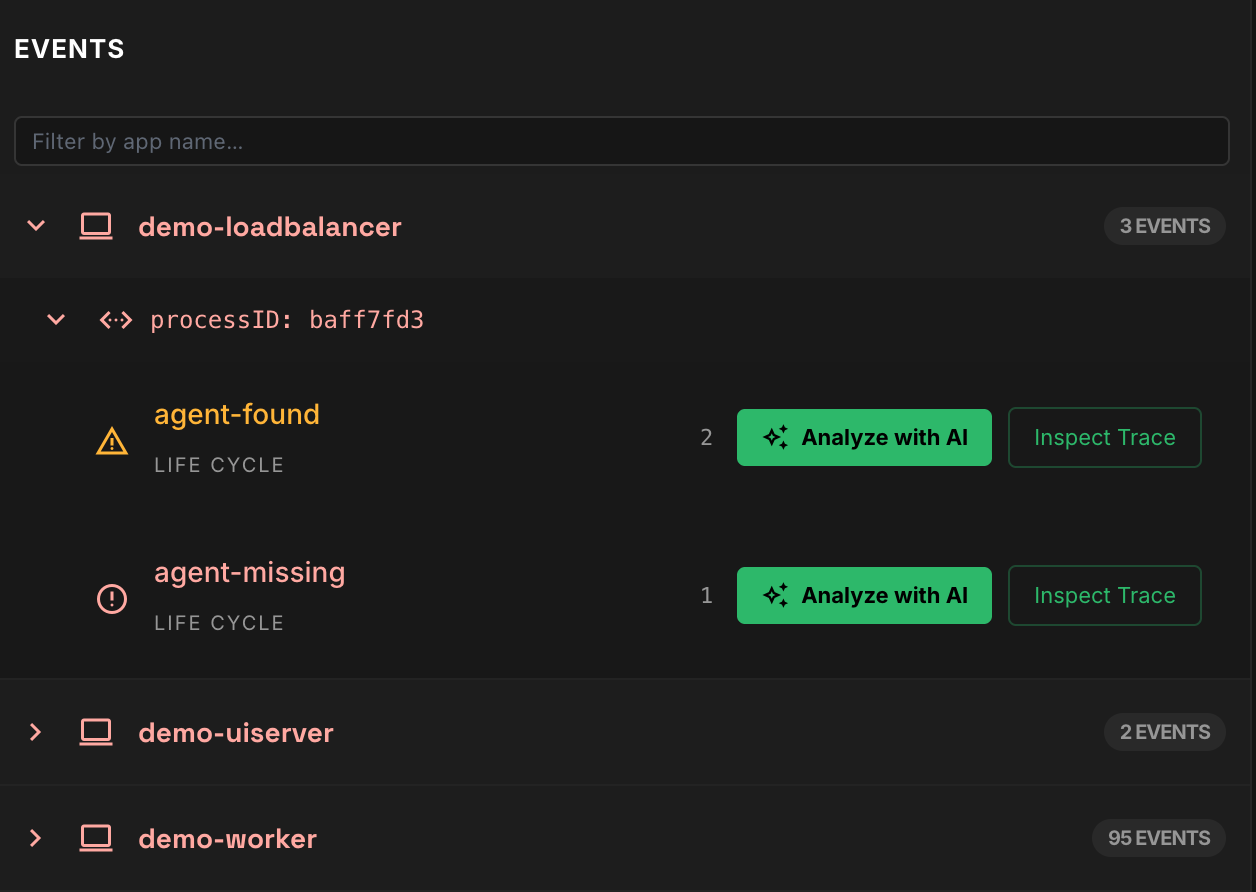
The view groups events from the broadest context down to the failing process:
- Events are grouped by application first.
- Within each application, events are grouped by process.
- Within each process, repeated events are grouped by event name, with a count.
If your workspace is mapped to an application, that app appears under This Workspace and all other apps appear under Other Apps.
Alerting behavior
The extension watches for important events, such as blocked processes and agent exits, checks them against your local settings, and shows a notification in the editor when it detects a serious event.
For blocked-process events, a local threshold filters out short stalls. Other critical events can trigger a notification based on their severity even when they have no duration.
Event settings
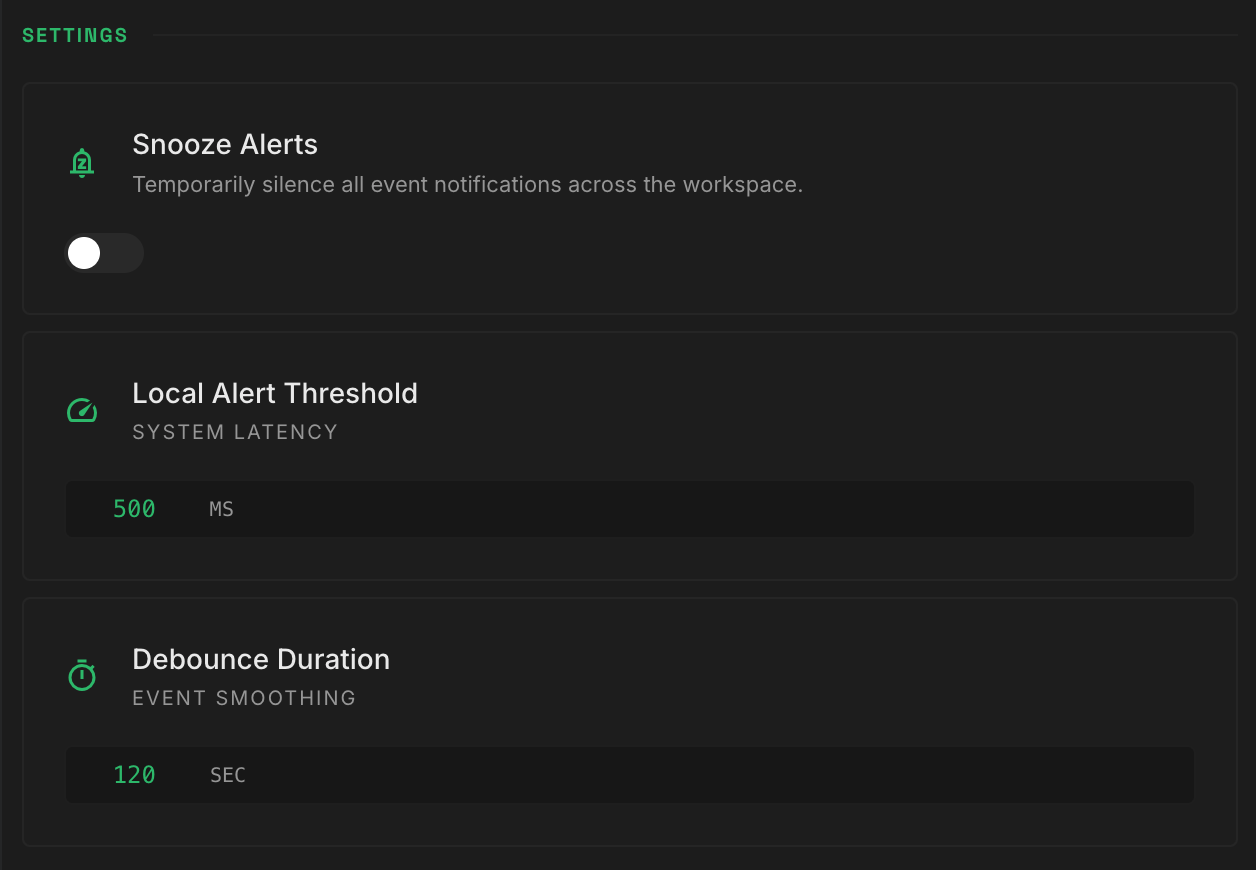
The Settings section of the Events view controls how often you're alerted:
| Setting | Key | Default | Description |
|---|---|---|---|
| Snooze Alerts | nsolid.snoozeAlerts | false | Temporarily silences event notifications across the workspace. |
| Local Alert Threshold | nsolid.alertThreshold | 500 | Duration in milliseconds that a blocked-process event must reach or exceed to raise an alert. |
| Debounce Duration | nsolid.debounceDuration | 120 | Interval in seconds used to smooth repeated events so they don't flood you with alerts. |
Investigate an event
Events with Critical, High, or Medium severity offer two follow-up actions:
- Analyze with AI — sends the event to an
@nsolidchat session so the AI agent can inspect the event payload and explain what likely happened. - Inspect Trace — opens the stack trace for the event, when stack information is available.
A typical workflow for a blocked or exited process:
- A serious event appears in the Events view or as a notification.
- Identify the affected application and process.
- Click Analyze with AI or Inspect Trace.
- Decide on the next diagnostic or remediation step based on the evidence.
