Asset Directory
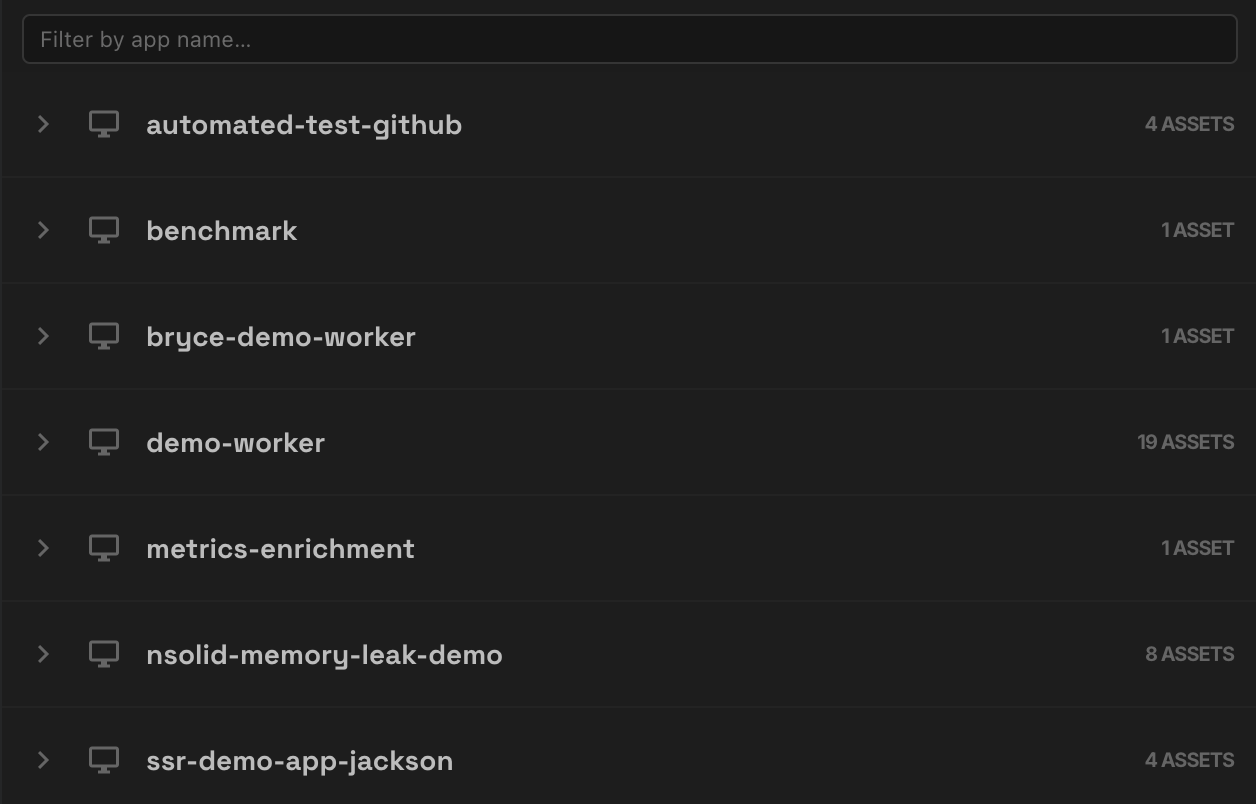
The Asset Directory view in the N|Solid IDE extension lists the diagnostic assets in your N|Solid Console, grouped by application, so you can download them into your workspace and hand them to an AI agent for analysis. Assets include CPU profiles, heap snapshots, heap profiles, and heap samples.
How the view is organized
The Asset Directory groups assets by application instead of showing one flat list.
If your workspace is mapped to an application, that app appears first under This Workspace, and other applications appear under Other Apps. Expand an app to see its assets. To reload the list, run Refresh Asset Directory.
Asset actions
Each asset row offers these actions:
- Download — saves the asset into the workspace.
- Open Asset — opens a downloaded asset.
- Ask AI — starts an AI analysis of a downloaded asset. This action isn't available for heap profiles.
- Delete local file (trash icon) — removes the downloaded copy from the workspace.
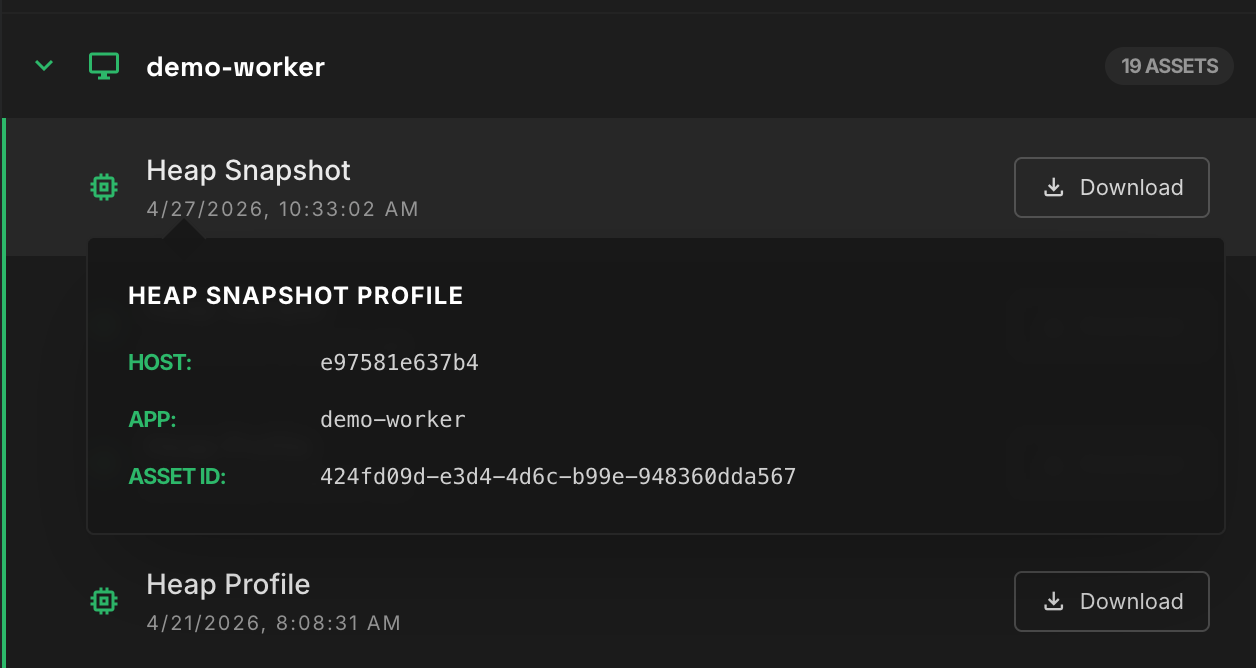
The view also shows whether an asset is already downloaded, shows progress while a download runs, and offers Retry Download if a download fails.
Download assets
Assets are downloaded to the workspace's .nsolid/assets/ folder. After a download completes, you can open the asset or analyze it with AI. If an asset is already downloaded, the extension offers those follow-up actions instead of downloading it again.
When the extension first creates the .nsolid/ folder, it offers to add .nsolid/ to your project's .gitignore.
Analyze assets with AI
After you download an asset, click Ask AI to start the asset analysis workflow. The extension opens an @nsolid chat session and passes it the asset's context so the AI agent can inspect it.

For some asset types, such as heap snapshots, the Console summarizes the asset in the background before the AI agent can fully inspect it. The extension handles this as part of the analysis workflow.
To capture a new asset from chat, use @nsolid /generate-asset.
Offline and signed-out behavior
If you aren't signed in, the Asset Directory still shows assets that were already downloaded to the workspace, and you can open them. AI analysis requires a valid N|Solid connection.
New asset notifications
When a new asset is created for an application, the extension can show a notification and reveal the asset in the Asset Directory. From there you can open it, or download and analyze it.
| Setting | Default | Description |
|---|---|---|
nsolid.assetNotificationsEnabled | true | Shows a notification when a new diagnostic asset is created. |
nsolid.assetNotificationSound | false | Plays a sound with new asset notifications. |
nsolid.assetDoNotDisturb | false | Suppresses all asset notifications. Overrides nsolid.assetNotificationsEnabled when true. |
