Getting started
The N|Solid IDE extension brings N|Solid monitoring, NodeSource Certified Modules (NCM) package data, and AI-assisted diagnostics into Visual Studio Code. This page covers installing the extension, signing in, installing the AI toolkit, mapping your workspace to an application, and connecting that application to the N|Solid Console.
The extension reads its data from the N|Solid Console. The Console receives metrics, events, and diagnostic assets from applications that run on the N|Solid Runtime, a drop-in replacement for Node.js with a built-in monitoring agent.
To get started:
- Install the extension.
- Open your project folder and sign in with your browser.
- Confirm that the connection is configured.
- Install the AI toolkit.
- Map the workspace to an application and connect it to the Console.
Install the extension
Install the extension from one of these marketplaces:
- Visual Studio Code Marketplace. In VS Code, open the Extensions view and search for N|Solid. This listing also works in Cursor.
- Open VSX Registry, for Antigravity and other VS Code-compatible editors.
- Windsurf Marketplace.
The extension requires VS Code 1.91 or later (or a compatible editor) and an N|Solid Console account, either N|Solid SaaS or a self-hosted N|Solid Console.
After installation, click the N|Solid icon in the Activity Bar to open the extension's views: Welcome, Telemetry, NCM Actions, Reports, Events, and Asset Directory.
Open your project folder before you sign in. Without an open workspace, the toolkit installation and project mapping steps are disabled.
Sign in
Sign-in lists and creates organization service tokens, so your NodeSource account needs the owner or admin role (or a role with the people permission) in your organization. See Role-based access control.
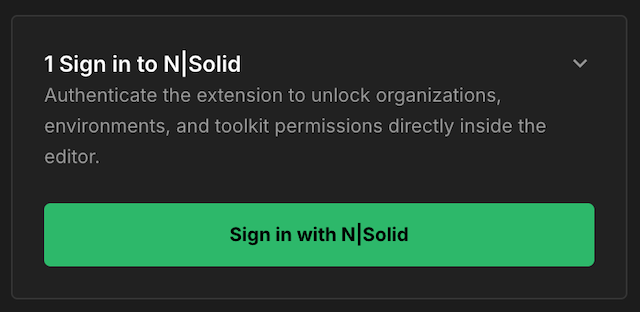
In the Welcome view, click Sign in with N|Solid. Your browser opens the NodeSource Accounts sign-in page (accounts.nodesource.com). After you authenticate, the browser returns you to the editor, and the extension stores your connection details in these settings:
| Setting | Value |
|---|---|
nsolid.consoleUrl | The URL of your N|Solid Console |
nsolid.serviceToken | A service token that the extension uses to call the Console API and MCP servers |
nsolid.saasToken | Your N|Solid SaaS token (NSOLID_SAAS), used to connect applications |
nsolid.organizationId | Your NodeSource organization ID |
nsolid.mcpUrl | The N|Solid Console MCP server URL, for example https://<organization-id>.mcp.saas.nodesource.io |
When a folder is open, these values are saved to the workspace settings (.vscode/settings.json). Otherwise, they're saved to your user settings. Sign-in also writes the MCP server configuration described in Install the AI toolkit.
If browser sign-in isn't available in your environment, you can set nsolid.consoleUrl and nsolid.serviceToken manually. Run N|Solid: Open N|Solid Settings from the Command Palette to open the extension's settings. To create a service token, see Service tokens. Also set nsolid.mcpUrl to your Console MCP server URL (see N|Solid Console MCP integration) before you install the toolkit, and set nsolid.saasToken to use Launch Locally with N|Solid.
Sign-in stores your service token and SaaS token in plain text in .vscode/settings.json. Sign-in and Install Toolkit also write the service token into your editor's MCP configuration file (.vscode/mcp.json in VS Code). Don't commit these files. Add them to your .gitignore:
.vscode/settings.json
.vscode/mcp.json
N|Solid: Logout from N|Solid clears the extension's settings but doesn't remove the token from the MCP configuration file. Delete those entries yourself if you no longer want the token on disk.
Confirm your connection
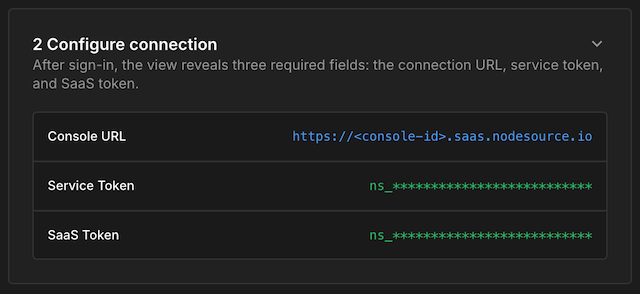
After sign-in, the Configure connection step in the Welcome view shows the Console URL, Service Token, and SaaS Token. Confirm that the Console URL belongs to the environment you expect.
If the extension appears signed in but features are unavailable, open the extension's settings and check that nsolid.consoleUrl and nsolid.serviceToken match your environment.
Install the AI toolkit
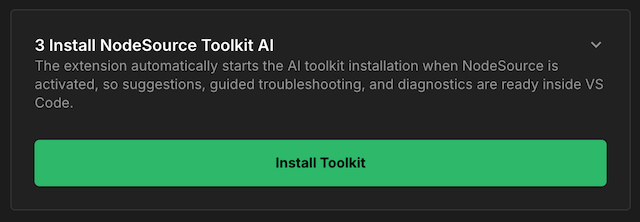
The Install NodeSource Toolkit AI step prepares the current workspace for the extension's AI-assisted workflows. The button is enabled once a Console URL and service token are configured. If the button is disabled, confirm that you're signed in and that the Configure connection step shows a Console URL and service token.
Click Install Toolkit. The extension then:
- Writes MCP server entries to your editor's MCP configuration file, keeping any servers you already added. In VS Code the file is
.vscode/mcp.json. Cursor, Windsurf, and Antigravity use their own MCP configuration files. The entries are:nsolid-console— the N|Solid Console MCP server (see N|Solid Console MCP integration).ncm— the NCM MCP server (nsolid.ncmServerUrl, defaulthttps://mcp.ncm.nodesource.com).ns-benchmark— the NodeSource benchmark MCP server (nsolid.benchmarkUrl, defaulthttps://benchmark.mcp.saas.nodesource.io/mcp).nsolid-local— a local MCP server bundled with the extension.
- Clones the NodeSource AI skills repository (
nsolid.skillsRepository) withgitover HTTPS and copies the skills into.agents/skills. See Agent skills. - In Cursor, Windsurf, and Antigravity, writes an N|Solid rules file for the editor's AI agent.
Skills installation requires git on your PATH and network access to GitHub. If cloning fails, the MCP configuration is still written.
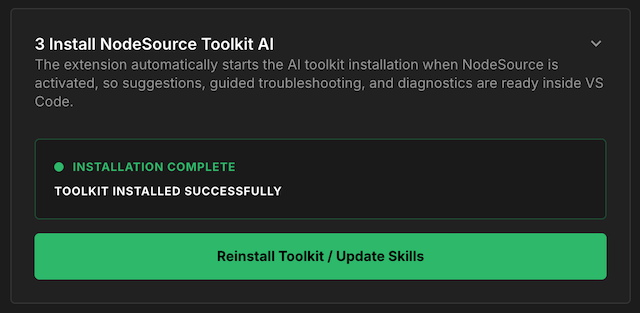
When the toolkit is installed, the step shows Installation Complete and the button changes to Reinstall Toolkit / Update Skills. Use it to refresh the MCP configuration or update the skills.
Map an application
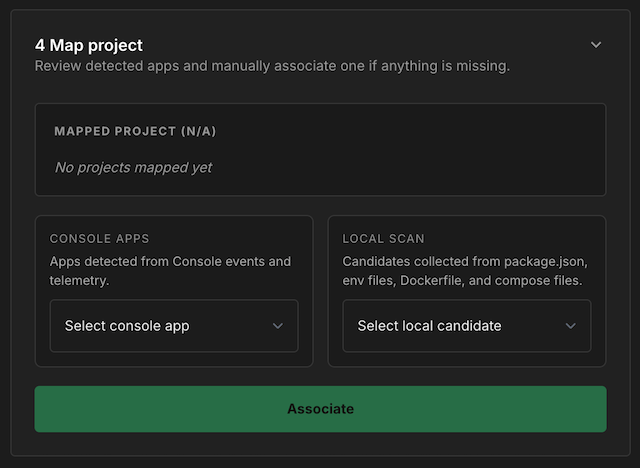
The Map project step tells the extension which N|Solid Console application belongs to the open workspace. Mapping doesn't start the application. It sets the app that the Telemetry, Events, Asset Directory, and Reports views show first, and the app that AI workflows use for context.
The extension offers two sources of candidates:
- Console Apps — applications found in recent N|Solid Console events and telemetry.
- Local Scan — application names detected in workspace files such as
package.json,.envfiles,Dockerfile, and Docker Compose files.
Choose the app whose name matches the application name your process reports to the Console, then click Associate. The extension saves the value in the nsolid.mappedApp setting and shows it under Mapped Project. To change it later, remove the mapping and associate a different app.
After you map an app, the final step watches for telemetry from it. If the app is already running with N|Solid, it appears as connected. If not, use one of the options in the next section.
Connect your application
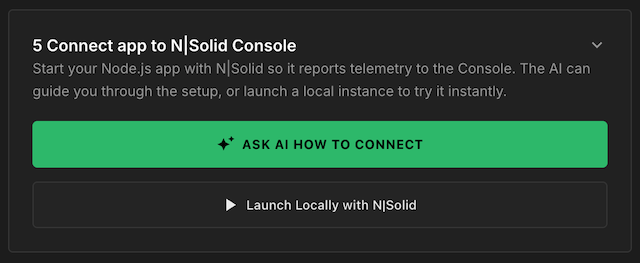
The Connect app to N|Solid Console step (also available from the Telemetry view when no apps are connected) offers two ways to connect a workspace application.
Ask AI how to connect
Click Ask AI How to Connect to get setup guidance for your project and deployment files. The extension opens a new @nsolid chat session with a prompt that asks the AI agent to inspect common configuration files, including .env files, package.json, Dockerfile, docker-compose.yml, and Kubernetes or Helm manifests.
The prompt includes your configured SaaS token, Console URL, and mapped app name (placeholders are used only for values that aren't set), so the token is sent to your chat model. It asks the agent for copy-and-paste changes such as:
- Setting
NSOLID_SAAS,NSOLID_APPNAME, andNSOLID_TRACING_ENABLEDin your environment configuration. - Updating
package.jsonso the application starts withnsolid. - Using an N|Solid Docker image for containerized deployments.
- Starting N|Solid programmatically from the application entry point.
Use this option for containers, orchestration, or any environment other than your local machine.
Launch locally
Click Launch Locally with N|Solid to run the workspace application with the N|Solid Runtime right away. The extension reads package.json, lists its npm scripts, and puts common names such as dev, start, serve, develop, and debug first.
After you choose a script, the extension opens a terminal named N|Solid Quickstart and runs:
npx nsolid-quickstart --saas "<token>" --npm "<script>"
The command uses the SaaS token stored by the extension. When the Console receives telemetry from the process, the app appears in the Telemetry view.
This option requires an open workspace with a readable package.json, at least one npm script, and a configured SaaS token.
Chat with @nsolid
The extension adds an @nsolid chat participant to the VS Code chat panel. Type @nsolid followed by a question, or by one of these commands:
| Command | What it does |
|---|---|
/audit | Runs a security audit on workspace dependencies. |
/upgrade <package> | Helps you upgrade a specific npm package. |
/replace <package> | Suggests a replacement for an npm package. |
/node-upgrade | Gives guidance on upgrading your Node.js version. |
/connect-setup | Inspects workspace files and suggests the changes needed to connect to N|Solid. |
/generate-asset | Generates a new diagnostic asset for a connected application. |
/analyze-asset | Analyzes an existing N|Solid asset. |
/analyze-event | Investigates an N|Solid event. |
/analyze-cpu | Analyzes CPU spikes and performance issues. |
/analyze-memory | Analyzes memory leaks and heap usage. |
/benchmark-run | Benchmarks a single function and saves the result to .nsolid/benchmarks/. |
/benchmark-validate | Compares an original and an optimized implementation with A/B benchmarks. |
The extension also uses /continue-optimization, /apply-optimization, /skip-optimization, and the -confirm variants of the benchmark commands as follow-up steps inside these workflows.
In Cursor, Windsurf, and Antigravity, extension actions such as Ask AI open the editor's own chat or agent panel with the prompt filled in. In Cursor, press Enter to send it. If the extension can't open the chat automatically, it offers Copy to clipboard so you can paste the prompt yourself.
Function benchmarks
In JavaScript and TypeScript files, the Generate Benchmark code lens above a function (or the N|Solid: Generate Benchmark for Function command) benchmarks that function through the ns-benchmark MCP server. Results are saved in .nsolid/benchmarks/. To compare an original and an optimized version, use @nsolid /benchmark-validate.
Commands and settings
Run these commands from the Command Palette. Most are listed under the N|Solid category.
| Command | Description |
|---|---|
| Open N|Solid Settings | Opens the extension's settings. |
| Logout from N|Solid | Clears the stored credentials and mapped app. |
| Open NCM Actions | Opens the NCM Actions view. |
| Run Security Audit | Audits workspace dependencies with NCM. |
| Open Vulnerability Dashboard | Opens a panel that summarizes dependency vulnerabilities. |
| Ignore Package Warnings | Suppresses NCM diagnostics for a package (stored in nsolid.ignoredPackages). |
| Generate Benchmark for Function | Benchmarks the function at the cursor. |
| Download Asset / Open Asset | Downloads or opens a diagnostic asset. |
| Refresh Telemetry, Refresh Events, Refresh Reports, Refresh Asset Directory | Reloads a view. |
The extension's other settings are described on the pages for each view. Telemetry about your use of the extension is controlled by nsolid.telemetry.enabled (default true). It is sent only when VS Code telemetry is also enabled.
Learn more
- Telemetry — view live application metrics and threshold alerts.
- NodeSource Certified Modules — review package quality and vulnerability data.
- Reports — revisit saved analysis reports.
- Events — monitor blocked and exited processes.
- Asset Directory — download and analyze CPU profiles, heap snapshots, heap profiles, and heap samples.
- Agent skills — learn how skills guide the extension's AI workflows.
