Taking and analyzing heap snapshots
Capture heap snapshots and heap profiles from a running process in the N|Solid Console, then analyze them in Chrome DevTools. Use them to investigate memory growth, retaining paths, and unexpected allocations without attaching an inspector to the process.
Take a heap snapshot in the N|Solid Console
A heap snapshot is a point-in-time capture of the V8 heap. Snapshots can be large. Taking one triggers a full garbage collection and pauses the process for a time proportional to the size of the heap, and it can temporarily increase memory use significantly. See Find a memory leak before you take snapshots in production.
- Find the process you want on the main dashboard.
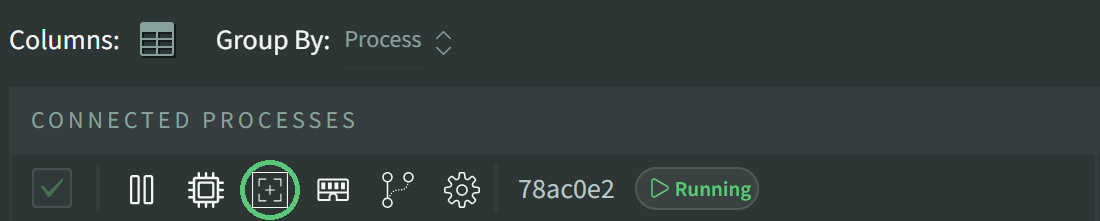
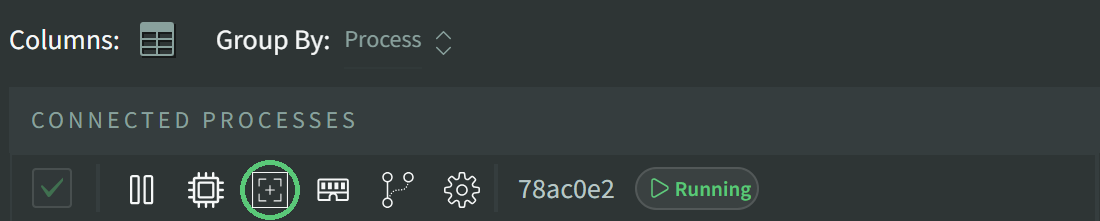
- From the process details page or the process list, click the New Snapshot icon.
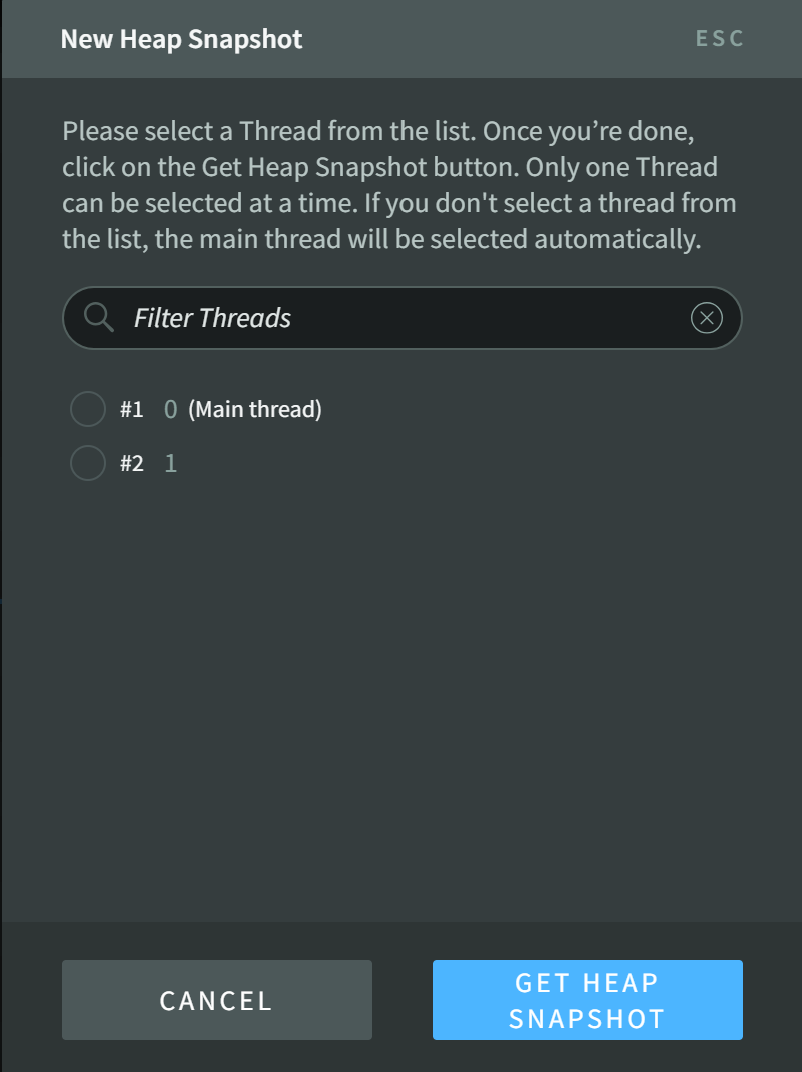
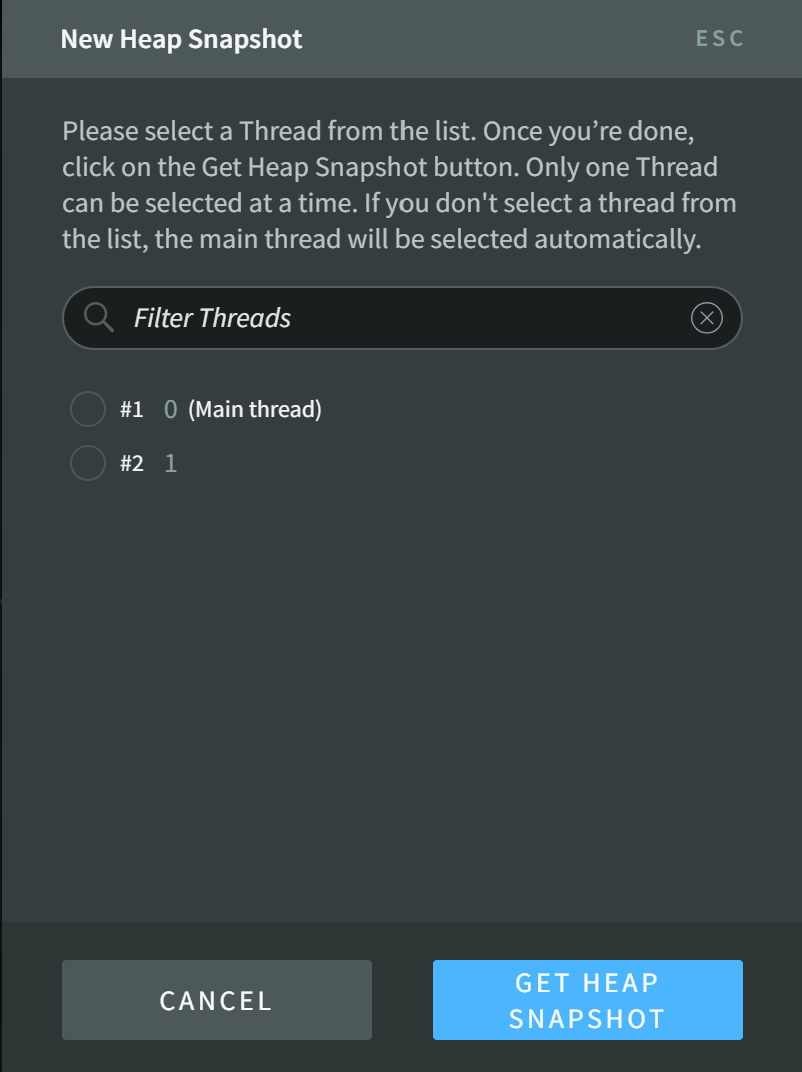
- In the New Heap Snapshot dialog, select the thread, then click Get Heap Snapshot.
- When the capture finishes, click View Results in the notification, or open the Assets view from the navigation menu. Click the download icon on the snapshot's row to download it.
If your application exits before the snapshot is complete, N|Solid tries to save the data collected so far. If it succeeds, the snapshot still appears in the Assets view.
The asset icons are disabled if assets are disabled for the process (for example, with NSOLID_ASSETS_ENABLED=0) or if your role doesn't have the required permission. You can also block heap snapshots with NSOLID_DISABLE_SNAPSHOTS=1, or remove string values from them with NSOLID_REDACT_SNAPSHOTS=1. See Runtime configuration.
Take a heap profile in the N|Solid Console
Besides full heap snapshots, the N|Solid Console can capture heap profiles:
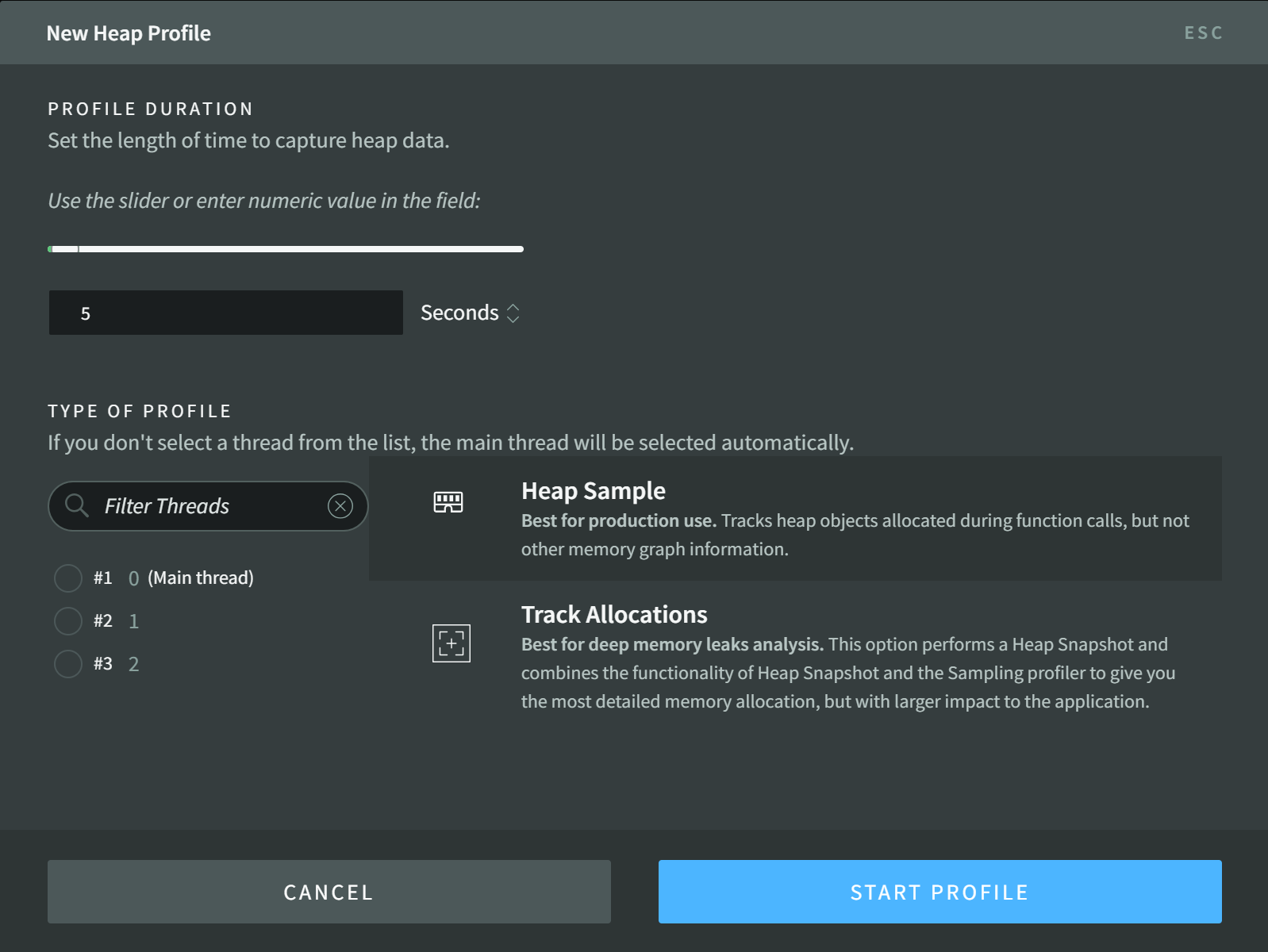
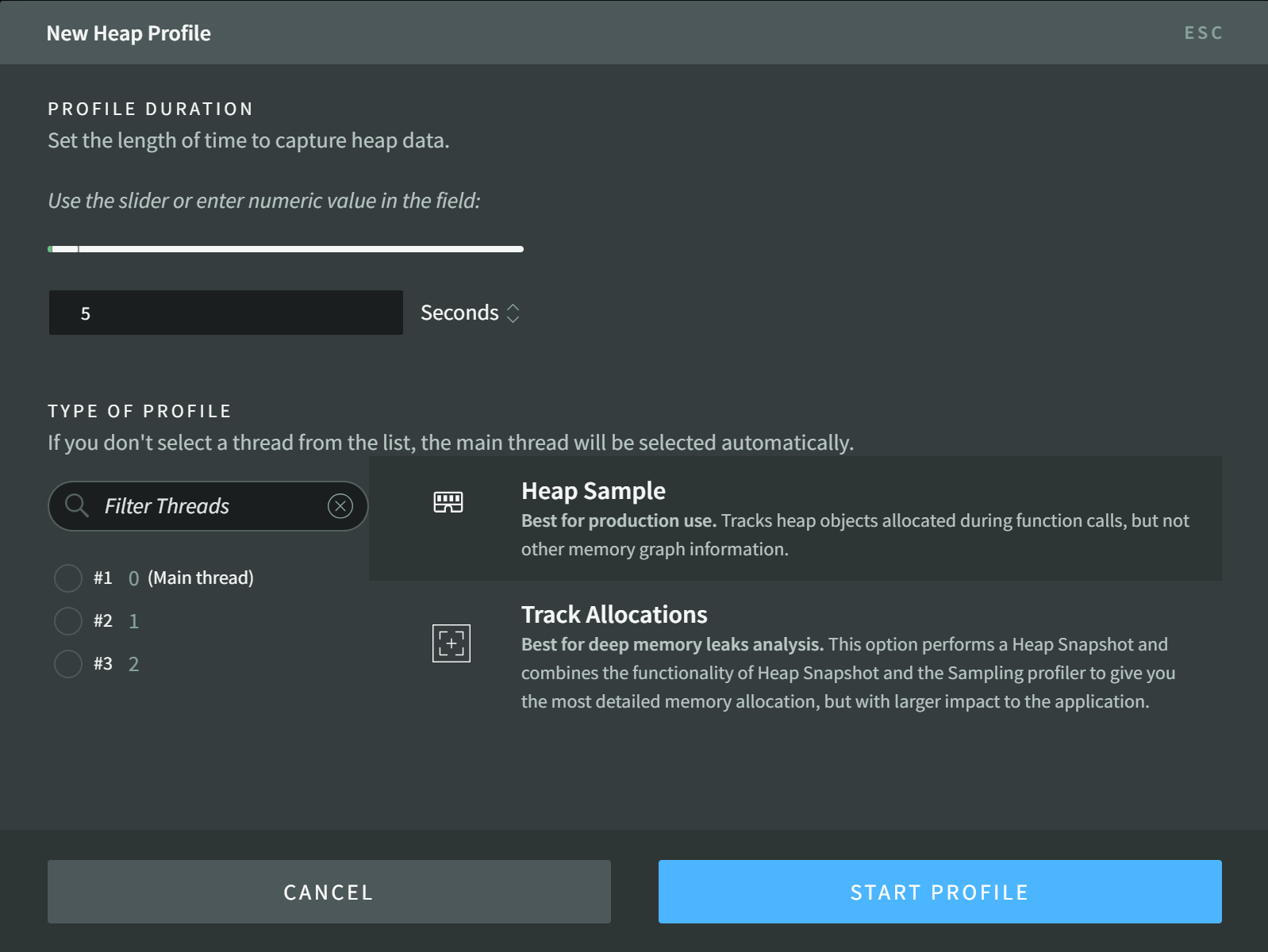
- Heap Sample records allocations with very low overhead. It is the best choice for memory profiling in production.
- Track Allocations works best for analyzing deep memory leaks. It combines heap snapshots and heap sampling to give the most detailed view of your process's memory allocation, but it has a large impact on application performance.
- Find the process you want on the main dashboard.
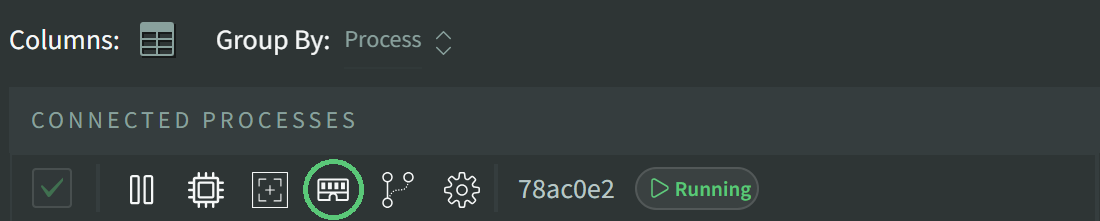
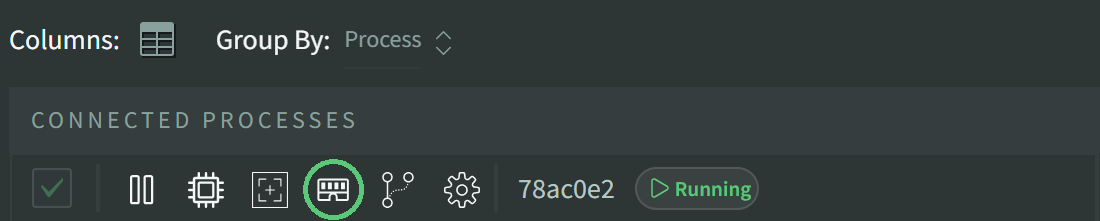
- From the process details page or the process list, click the New Profiler icon.
- In the New Heap Profile dialog, set the profile duration (1 second to 10 minutes), select the thread, and choose the Type of profile: Heap Sample or Track Allocations.
- Click Start Profile.
- When the capture finishes, click View Results in the notification, or open the Assets view from the navigation menu. Click the download icon on the profile's row to download it.
Analyze heap data in Chrome DevTools
Download heap snapshots and heap profiles from the N|Solid Console and analyze them locally in Chrome DevTools.
Analyze a heap snapshot
- In the Assets view of the N|Solid Console, download the heap snapshot.
- Open Google Chrome.
- Open Chrome DevTools: press
F12(orCtrl+Shift+I;Cmd+Option+Ion macOS), or open the Chrome menu and select More tools > Developer tools. - Open the Memory panel.
- Select Heap snapshot, then use the load button in the left pane.
- Select the downloaded file (usually a
.heapsnapshotfile) and open it.
When it loads, use the standard DevTools views, such as Summary, Containment, Comparison, and Statistics, to inspect memory use and retained objects.
Analyze a heap sample
- In the Assets view of the N|Solid Console, download the heap sample.
- Open Chrome DevTools.
- Open the Memory panel.
- Select Allocation sampling, then use the load button to open the downloaded heap sampling profile.
The sampling views focus on allocations during the capture window and help you find the call stacks that allocate the most memory.
What to look for
Analyzing heap snapshots and profiles can be complex. The Chrome for Developers documentation explains how to use Chrome DevTools to analyze heap snapshots and allocation profiles. For a complete workflow, see Find a memory leak.
Use the CLI and the JavaScript API
If you prefer to work locally, you can also pull heap assets from remote processes with the N|Solid command-line interface (CLI), then load them into Chrome DevTools as described above. See assets in the CLI reference.
You can also trigger heap snapshots and heap samples from your code with the N|Solid JavaScript API.
